Showing posts with label Pc. Show all posts

Sunday, November 15, 2015


Random Access Memory (RAM) is a hardware device that allows information to be stored and retrieved on a computer. RAM (Random Access Memory) helps you in accessing applications. So now if you want to see which Random Access Memory (RAM) you are currently using then you can use few tools, the best one I came across is the CPU-Z that scans your entire hardware and shows you all the information about it. You just need to follow below steps to shows you all the information about it.
 
 CPU-Z to check Type of RAM in my Computer:- 


Download

Hope you like this Post guys ,Keep Checking our Blog we have lot more intresting to share with you in upcoming days.If you have facing any problem or Suggestion please make a comment below or our Facebook Fan Page.

How to Detect the Type of RAM in my Pc

Wednesday, June 3, 2015

IF YOU Don’t have a webcam, but u need to make an urgent video call on Skype or some other video conferencing service? If you already have a webcam and want to add a second camera to your setup?

So guys you need is your Android phone and a suitable app.

Why Use Your Phone As A Webcam?

If You want to video chat with your friends on Skype or Facebook . Or perhaps it’s your boss, wanting a teleconference to discuss that report you submitted. But you don’t have any webcam. Although they come built into many monitors and all-in-one PCs, We know that everyone doesnot  has a webcam.So this is the best trick for you to use your smartphone as a webcam.

Requirements:
  1. ManyCam for Windows or Mac
  2. IP Webcam for Android or IP Cam Viewer Lite for iOS
How to?
1: Install IP Cam App in your Phone.
2: Install ManyCam Software in your PC/Mac
3: Start IP Cam Service in your Phone.


4: Copy IP and Port Address from your Phone.


5: Now In ManyCam Click on Sources.
6: Then IP Cameras then Add IP Camera


7: Add New IP Camera URL that you copied from Phone.

For Android User add URL like: http://[YOUR_IP]/video
For iOS User Direct Add URL like: http://[YOUR_IP]/


8: Then click on Add IP Camera.
9: Now Again Click on Sources for Adding Cam. 
10: Click on IP Cameras then select your IP Camera.


11: Its Connected

12: Done


Hope you like this article,Keep Checking our Blog we have lot more intresting to share with you in upcoming days.If you have facing any problem or Suggestion please make a comment below or our facebook fan page.

How to Use Smartphone as Webcam for PC?

Sunday, May 31, 2015


 Now a days everyone owns a smartphone and have WiFi in it. Some people buy a WiFi router along with broadband so that they can use one internet connection on all of their WiFi supported devices, but many people don’t have a WiFi router, in case they can use Connectify Hotspot Pro to make WiFi hotspot on your Windows 7/8.1/8/10 Laptop and Desktop computer. Here in this post I am going to show you how you can create a WiFi hotspot from windows system using Connectify Hotspot Pro.


Create WiFi Hotspot Using Connectify Hotspot Pro

First of all you have to download the Connectify Hotspot Pro software, which can be downloaded either from the official website or from torrent as well. Remember that this is a paid software, so if you will download it from official site, you will get version of only few days. You can use torrent to download full version of this software.
  • You can download Connectify Hotspot Pro from it’s official website.
  • After downloading the setup, install it on your system. If you are facing any problems in installing it, do let me know via comments.
  • After successful installation, restart your system.
  • Now open up Connectify Hotspot Pro and wait for the windows to load all of the settings itself.
  • Now if you are using full version of Connectify Hotspot Pro, then you may be able to change the name and password of your hotspot. If you are running free version, the they remains same.
  • That’s it your are done. You can now scan for WiFi networks from your devices and connect it to the hotspot

  
Features of Connectify Hotspot Pro for Windows 7 or Windows 8/8.1 Computer
  • With  Connectify Hotspot Pro you can share your internet connection with full speed within the range of WiFi network.
  • You can protect your WiFi with password.
  • You can share your files also easily.
  • Play multiple player games between any number of computers
  • Price-$25
  • Rating-4.7/5
  • Rating given by 5722 users-(rating taken from the web)

So this is it, you have reached the end now. I hope you have liked the post and go what you were searching for. Connectify Hotspot Pro is one of the best software for windows laptop and desktop to create WiFi hotspot on Windows 7,8,8.1 and 10. There are many more tools available to do so, but Connectify Hotspot Pro is the best among them. If you know any other great tool and you think it is better than Connectify Hotspot Pro, then do let us know via comments below. Soon I will post a step by step tutorial with another tool to create WiFi hotspot using windows 7/8.1//8/10 computer or laptop.

Make WiFi Hotspot in windows without any router (Connectify Hotspot Pro)

Wednesday, May 27, 2015


Hello friends in this article you will find out  how to Send files from one computer to another by using Lan cable (cat5). If you don't like using big pen drives to share large data ( like big games,movies etc) so the only thing you want to use is lan cable.

Advantages of using Lan cable:

1. Cheaper in cost.
2. Data transfer speed is very fast.
3. Easy to configure.

Steps To Follow:

1. Connect one computer to another using lan cable.
2. Go to Control Panel> Network and Internet> Network and Sharing Center > Advanced sharing settings.

3. Turn on network detection and turn off password protection off.(On both computers)
4. Bring both the computers on same network.Open control panel Control Panel >> Network and Internet >>Network Connections.


You will see Local Area Connection 2 .
Right click it and navigates to properties .
You will see tcp/ ivp4 option there and select it’s properties .


5. Select this use the following ip address

Put the following value on 1st computer
  • Ip address 192.168.1.1          
  • Subnet mask 225.225.225.0
  • Default gateway 192.168.1.3

Put the following value on 2nd computer

  • Ip address 192.168.1.3
  • Subnet mask 225.225.225.0
  • Default gateway 192.168.1.1

Basically what we are doing is keeping the subnet mask same and changing the ip address . You might have seen others values on different websites, all are correct but if you are not familiar with networking I would suggest that you stick to these values only. If everything went good you will see the two computer name in the Networks.

Share a folder on lan

Assuming that you have connected the cable properly and enable the sharing option now it’s time Send files from one computer to another , this is very simple

1.Select the folder you want to share, right click it .
2.Select share this >> specific people.


3. On the drop down menu select everyone >> add >> click share.


Hope you like this post,Keep Checking our Blog we have lot more intresting to share with you in upcoming days.If you have facing any problem or Suggestion please make a comment below or our facebook fan page.

How to connect your pc with another using lan cable

Saturday, May 23, 2015

A Virtual Private Network (aka VPN) is a great way to surf the web more securely or access video content that is blocked in your country. A VPN is particularly appealing to people who want to keep their mobile data safe, particularly if you are using a mobile phone OS that isn’t as secure as it could be. There are tons of paid options out there, but many of the free options are perfectly serviceable for the average user. Here are our top picks for the best free VPN services out there.

1. Hotspot Shield VPN

Hotspot Shield is a VPN service that has gotten a ton of great press from CNN and the New York Times. The free version of Hotspot Shield is ad-supported, so you’ll have to upgrade to Elite status ($29.95/year) if you want to go ad-free.
Hotspot Shield has a lot of great features. It is available for PC, Mac, iOS & Android, and it’s very easy to tell when the VPN connection is on or off. The service alerts you if you are about to access a website that has been linked to malware or phishing.
That being said, as someone who used this VPN service for months, there are some issues you need to watch out for. The VPN connection was always great on my laptop, though I sometimes had to turn off the VPN in order to properly access features in WordPress, or to get certain websites to load properly. I also found it very unreliable on my smartphone: it would sometimes turn off VPN protection for no reason, and refuse to reconnect until I re-installed the entire app. PC Mag also noted in their review that this VPN service messed around with browser preferences.
Overall, however, this service is trusted. And I will say, from personal experience, this VPN has become a lot more stable in the latter half of 2014. Since it’s come into step with iOS 8, this free VPN service has been humming along perfectly well on my iPhone 6. I’ve had some issues in the past, but with iOS 8 the mobile version of this VPN service is working much better, and the desktop version is as great as it’s ever been. Whether you stick with the free version, or decide to upgrade to the paid version, Hotspot Shield is one of your best options in terms of usability and speed.
About 175 million people have downloaded Hotspot Shield, according to the App Store description. You can learn more about this free VPN service in the tutorial video below:

2. Cloak VPN


Cloak VPN offers a 30-day free trial. Cloak plans cost as little as $1.99/month after your free trial expires.
Installation of the app is extremely simple, though you do need to register on the Cloak site, rather than being able to register from within the Cloak app on your mobile device if you want mobile VPN coverage. You can get additional free data cloaking when you tweet about the company.
Cloak stands out because of their friendly, funny, and fast customer service. Do note, however, that Cloak is only available for Apple products, such as iPhones, iPads, iPods, and Mac computers. Cloak Transporter, which is free, lets you appear as though you are accessing the Internet from many different countries. This is ideal for watching streaming video on sites like Hulu or Netflix. While Cloak isn’t available for Android, Windows Phones, or BlackBerry devices, it remains one of the best free VPNs for computers and mobile devices.
Learn more about Cloak in the video below, which features an interview with the people behind the scenes at Cloak.

3. CyberGhost VPN


CyberGhost VPN got top marks from MakeUseOf, which stated that the service was Windows-only. However, these days this free VPN download is available for Android, iOS, Mac, and Linux, as well as for Windows.
MakeUseOf adds:
“They do good work and they provide a free version of their VPN service that offers great bang for the buck: approximately 1950 GB of monthly traffic with bandwidth speed supposedly capped at 1 Mbps. Plus, they have over 200 servers in 19 different countries for wide availability.”
This app is free, and comes highly recommended from multiple tech websites, including PC Magazine. It offers one-click connections. Free plan users only have access to 22 of the 200+ servers, however. Premium plans start at $6.99/month. Whether you’re committed to only using the free product, or you want to splurge for a premium VPN service, this company is definitely one to consider. Oh, and one last perk: CyberGhost accepts Bitcoin.

4. TunnelBear VPN


Words like “beautiful” don’t generally get tossed around in the same sentence as “VPN”…unless the VPN in question is TunnelBear. The Next Web called TunnelBear “The Most Beautiful VPN App We’ve Ever Seen.”
Available for iOS, Android, PC, and Mac, TunnelBear is a free VPN service. If you exceed 500MBs of free data in a month, you will need to upgrade to a paid plan to keep using TunnelBear. Paid unlimited plans start at $4.99/month, or $49.99/year.
As of September 2014, TunnelBear revamped their mobile experience for iOS and Android. With some new changes, it is now even easier to “tunnel” around censored and blocked websites and enhance your digital privacy. You can now turn VPN on/off with a single click, and you can also auto-reconnect your connection after hibernation.
You can learn more about TunnelBear’s free and paid VPN services in the video below.

5. VPNBook VPN Service

(VPNBook)
VPNBook is a free VPN service that has a 4/5 rating on PC Mag. Installation is a bit more cumbersome than other services on this list, but on the plus side, no registration process is required prior to using this VPN.
VPNBook works with Windows, Mac OS X, and Linux. iPad and Android are also supported. The VPNBook site offers detailed guides to setting up your VPN connection. There are no bandwidth limits. However, it is unclear what level of security is being used at any given time: the site states that VPNBook uses “encryption techniques such as AES-256 and AES-128.”

Hope you like this post,Keep Checking our Blog we have lot more intresting to share with you in upcoming days.If you have facing any problem or Suggestion please make a comment below or our facebook fan page.

Top 5 Best Free VPN Services

Saturday, May 16, 2015

Download Show Box App for PC and Android: Show box android application is becoming popular day by day. The Showbox application is an amazing application which gives a huge storage for movie, cartoons and TV shows. They update their database on a regular basis. The show box application is designed for your android devices as well as your personal computers. Show Box is the perfect package of entertainment for you if you are a movie buff. It serves you all of your favorite movies and TV shows for absolutely FREE. This application serves download link as well as the streaming link. This application also brings the IMDB ratings along with the teaser of the movie so that you

Must Read: Top 5 Best Sites to Download Favorite Movies for Free

become comfortable to choose a movie to watch, also you can see the screenshots of the movie or TV show to know about it. The interface of the application is pretty navigating and minimal. With this application you are able to optimize the quality of the video as per your aspects. This application is available in two languages that includes English and Russian. Show Box is a Show Box in true sense. It shows you movie and TV series on your Android smartphone and now your PC as well. Show box is an application available for smartphones powered by Android OS. By just installing this application you can browse through movies and TV series on your smart phone. If you are looking for a tutorial to learn How to Download Show box for PC? Then you are at the right place. Here you will be getting the complete guide about on it. So take a look

Featus of Showbox Application

  • The Showbox application is very easy to use and instructions are also very convenient to follow.
  • You can also earn show box points by downloading this application and you can redeem gifts by these earned points.
  • The Showbox application has a maximum limit for unlocking your phone and earning these points and once the limit is reached, you can’t earn further points.
  • The Showbox application provides a huge database of both the new and the old productions.
  • The show box android application can easily be downloaded on your android devices. It can also be installed on your personal computers by installing android BlueStacks and then downloading the Showbox from any authentic website linked.
  • Show box application also gives you free vouchers and saves your money.

Download Show Box for PC using BlueStacks

  • Download BlueStacks app player software on your computer from it official website. It is free!
  • Install BlueStacks on your PC.
  • Go to program menu and search for Show Box and install the app with BlueStacks.
  • After the quick installation, enjoy your favorite videos and TV Series without any fear of missing any important episodes.

Download Show Box for PC using Andy

  • Download and install Andy.
  • Open Andy and complete the Signup procedure and in case the user has a Google account, the same can be used.
  • Open the application and download the showbox apk from the web http://apkapps.com/apps/details/showbox/326 (using your PC browser)
  • Once downloaded and while Andy is running just double click the APK and it will be side loaded into Andy.
  • The Show Box for PC application is ready to use, which supports both Windows as well as Mac computers.

Download Show Box for your Android device

For getting showbox on your android easy process is downloading it from Google play store or another process is below:
  • Download Show Box APK – http://apkapps.com/apps/details/showbox/326
  • Connect your Android phone to your PC.
  • Move the APK file to your phone
  • Go to the File Manager and click on the Show Box APK file.
  • Now click on the install and wait still it get installed.

Conclusion

So guys I hope now your problem solve. This is the complete guide about on showbox installation process on pc and android. I hope it will be very helpful for you. If you face any problem then leave a comment.

Hope you like this post,Keep Checking our Blog we have lot more intresting to share with you in upcoming days.If you have facing any problem or Suggestion please make a comment below or our facebook fan page.


Download Show Box for Android and PC (Windows 7/8/8.1/Xp and Mac)


We all know that Internet is one of the biggest and ever growing industries on this planet now and advertisements are all here to let advertisers and publishers earn money. Advertisements are critical source of revenue for advertisers and publishers. I really appreciate everyone who does not block ads on sites. However I am not in favor of ads display because some advertisements can be very annoying (especially Flash ads). So I think everyone should know how to block ads on desktop browsers like chrome, Firefox  and in android devices too.
So here I am going to show you how you can block ads on Google Chrome, Mozilla Firefox and Android browser.

Must Read: Make WiFi Hotspot in windows without any router (Connectify Hotspot Pro) 

How To Block Ads In Google Chrome

Block ads in chrome using AdFender

AdFender is an ad blocking program which is available for free for Windows and it is able to block almost any type of ads from the browser. Many users says that AdBlock Plus is the best extension to block ads, but let me tell you that it uses the same EasyList block list as AdBlock Plus, so ad-blocking accuracy is similar. One more thing to note is that it also works with Mozilla Firefox, Safari, Internet Explorer, Opera, Epic, Chromium, K-Meleon, Waterfox, Yandex, Maxthon, and many more browsers but according to reviews, it works best on Google Chrome. So I have included it in Google Chrome list.

How To Block Ads In Mozilla Firefox

Anvi Ad Blocker
Anvi AD Blocker is designed to detect and block malicious advertisements pop up in real-time. It is a powerful yet easy to use program which can help you out in most of the times. It monitors processes which are trying to connect network in real time, so it means it also provides you security. It is a paid product and the free version can be used only for 15 days. Still it is good to have.

 Adblock Edge
Adblock Edge is a straightforward extension for Mozilla Firefox specially designed to block all advertisements as you browse the web and visit various pages. Once installed, Adblock Edge automatically blocks banners, video ads and popup windows that, otherwise, would load and clutter your screen. Unlike Adblock Plus, Adblock Edge does not include an “Acceptable Ads” filter that allows certain advertisements to appear on the visited website.

Must Read: How to increase idm download speed

How To Block Ads In Android

Adblock Plus – AdBlock Plus is one of the most used and trusted tool to block unwanted and annoying advertisements from web pages. It well known as Google Chrome and Firefox extension, but only a new people knows that it is available for android devices too. Here is how you can use it to block ads on your android devices.
  1. First of all, you need to enable unknown sources (it is mandatory to do so and you can disable it after ending the block ads process). To enable unknown sources navigate to Settings >> Security >> Applications
  2. After enabling the unknown sources, you have to download the Apk file of AdBlock Plus either from Google Play Store or from its official website. After downloading, install it on your phone and make sure it is being installed on phone memory rather than SD card.
  3. After installing, run the AdBlock Plus app on your android device and enable filtering. Then it will automatically perform and set the proxy setting for your device.
  4. Normally it automatically sets proxy for best performance, but sometimes it fail to do so. In that case you can refer to their official guide, which will help you in configuring it manually.
  5. Ones you have done and followed all the steps, it will start doing its work and will start blocking useless and annoying ads on Android apps and browsers.
Note: Adblock Plus will keep on blocking ads until it is enabled, once you have disabled it then it will not block ads for your device.

Conclusion

There are many more ways, extensions and software available to block advertisements on Google Chrome, Firefox and Android devices, but the ways mentioned above are the best as I have added them after analyzing their user reviews and ratings.
Before blocking ads, always keep in mind you may be blocking the only source of revenue your favorite website has; lack of ad revenue can often times drive a website out of business. I am not saying you not to block ads, but block ads only on those sites which shows flash and more than average number of ads. So this is it what I have for you in this post. I hope you have liked it. Please share it with your friends too and do let me know your views on it via comments below.

Hope you like this article,Keep Checking our Blog we have lot more intresting to share with you in upcoming days.If you have facing any problem or Suggestion please make a comment below or our facebook fan page.


How To Block Ads In Chrome, Firefox and Android

Friday, May 15, 2015


 As we all know uTorrent is one of the best tool to download small, as well as heavy file. Most of the computer users use uTorrent to download their files and games. Sometimes, we get so much of high speed in uTorrent, that our file gets downloaded within minutes, but sometimes it takes hours even when you have a fast iternet connection.
Is your utorrent download speed is very slow? Are you searching for methods to increase utorrent download speed? But you don’t know how to increase utorrent download speed? Then you are going to love this guide for sure

What Is uTorrent?

First of all let me tell you what actually uTorrent is. uTorrent is a freeware software, which is a BitTorrent client and it is used to download files from a peer-to-peer network of torrent users. µTorrent is available for Microsoft Windows, Mac OS X, and Android. For those who use Linux, they can use µTorrent Server.
Currently there are two versions of uTorrent, one is paid and another one is free. The paid version is known as uTorrent Plus and it have some additional features like integrated file conversion, anti-virus and a built in media player.

Download uTorrent For Android
Download uTorrent For Windows
Download uTorrent For Mac
Download uTorrent For Linux

How To Increase Download Speed of uTorrent
Check The Seeders

To increase the downloading speed of your torrent, first and foremost thing you should do is to check how many seeders are there of that particular file. Seeders are those people who continue to share the file after it has been downloaded. After downloading that file, instead of removing torrent from client, they choose to upload it’s content so that other people who are downloading content of the same torrent can get more faster download speed. The more the seeders there are the faster the download will be.


Check Your Firewall Settings:

Firewall is in-built made security tool to protect windows users from harmful internet websites and connections. It can block all incoming BitTorrent connections coming through. Though firewall sets it’s settings accordingly to the software, but you can change the settings manually too. To increase the download speed of torrent, you have to change some settings of firewall. Please follow each of the steps carefully.
Open you torrent client and click on options.
Then choose preferances from the list and you will see, a list on the left side of the box. Click on Connection.
Check the Windows Firewall exception (if you keep it enabled) in your client too.
Shutting down the firewall is not recommended as it leaves the computer open to attack.

Configure Your DNS Server

By default, windows automatically detects and assigns DNS servers for your IP address by every DNS server is not as fast as other. So when a change is made to your DNS servers, download speed fluctuates. So it’s better to change your DNS server to widely known fast DNS servers, either Google Public DNS (8.8.8.8 and 8.8.4.4) or OpenDNS server (208.67.220.220 and 208.67.222.222). Changing your DNS will definately give a boost to the internet connection, resulting in inrease in download speed of torrent.

Prioritize Your Torrent

Sometimes, you have to go outside, so you though to start so many torrents at once to make it a loop, but this may cause downside for other torrents too. So, it’s better to pause other torrents, if you don’t want to do this you can always prioratize your main Torrent file for high badwidth allocation. Which means the file which is one the 1st, will consume more bandwidth. To do this, right click on your torrent, a menu will pop-up, choose Bandwidth Allocation from it, in the sub-menu choose choose High. In the same option, Set download limit to Unlimited and upload limit to a 10kbps.


Some Tips For You
  • Never consider your internet plan as download speed. Suppose if you internet plan is of 1Mbps, then the maximum download speed you will get on uTorrent is about 125-130KBps. It may be low or maybe high, depends on the network coverage and location.
  • Torrents and internet browsers show you download speed in bytes, while your ISP (Internet Service Provider) shows you bandwidth in bits.
    In simple terms Mbps = Megabits per second and MBps = Megabytes per second.
  • If your bandwidth speed is 2Mbps (2048Kbps) then your max download speed will be 256KBps.
  • If the torrent you download has high Seeders, you can receive download speed 100 times your bandwidth. Mine bandwidth speed is 3.1Mbps but receive around 5MBps of download speed for highly seeded torrents.

Hope you like this article,Keep Checking our Blog we have lot more intresting to share with you in upcoming days.If you have facing any problem or Suggestion please make a comment below or our facebook fan page.

How To Increase Downloading Speed of uTorrent

Thursday, May 14, 2015


Today we are sharing the best torrent sites of 2015 which are ranked based on continuous traffic that are updated statistically.Since some years, there has been a great increase in torrent sites and their usageby a large number.
Before we get into the details of top torrent websites of 2015,let us know what does torrent mean.

What is Torrent?
Torrent- It is explained as a file that is small and that containsinformation which helps in downloading purpose.The speed for downloading torrent does depend on peers,leeches and seeds.

10 Best Torrent Sites for Movies, Games and Software
.

1. Kickass Torrent

The Kickass Torrent is a well known torrent site for movies, Games, Software and other download material. It is founded in 2009 and in no time it got popular. It has a huge database of Movies and softwares in various categories.

2.Torrentz

Torrentz is one of the best torrent sites in the world. It is mostly known as a torrent search engine. Torrentz never host any files for their own. Instead, it redirects you to other torrent sites based on your search.

3.ExtraTorrent

ExtraTorrent is another popular and one of the best torrent sites. Its mainly popular Movies, Tv shows and Software which you can easily get from this torrent site. The site is quite easy to operate.

Must Read: How to Book Flight tickets directly with google

4.TorrentBox

Next we have TorrenBox in the list of most popular Torrent Sites 2015. TorrentBox is a new site and got popular in a short span of time. Its clean navigation helps you to navigate through various categories including Movies, Games, Musics and softwares.

5.The Pirate Bay

The pirate bay is an old player in Torrent sites. There was a time when The Pirate Bay used to be a king of all torrent sites. But due to lot’s of legal issues it got blocked in more than 10 countries which was a big loss for this site. Still, it is popular and getting huge success. The Pirate Bay is still blocked in some countries including India.

6.Bitsnoop

We are now in the 6th position of this list of best Torrent sites 2015. In the 6th position we have Bitsnoop. It is also a popular name in world of torrent.

7.1337X

1337X is also a best torrent site. 1337X is generally known for Movies and Software. It provides both Fi9les and magnet links to download file from the torrents.

8.TorrentDB

TorrentDB is another well known torrent site. TorrentDB has a huge database of torrent files from all popular networks. TorrentDB generally index all popular torrent sites and add the latest collection in their database. The site navigation is fairly easy.

9.Rarbg

Rarbg is again a new site which is doing well in the fields of the torrent. This site was founded a few years ago and within no time it got some huge success.

10.isoHunt

isoHunt is the last torrent site in our list. The isohunt.com was closed in 2013 and later on team came up with the new version of that site which is now known as isohunt.to


Hope you like this article,Keep Checking our Blog we have lot more intresting to share with you in upcoming days.If you have facing any problem or Suggestion please make a comment below or our facebook fan page.

Top 10 Best Torrent Sites 2015

Monday, May 11, 2015

Hello friends today we are sharing a simple way to increase idm downloading speed.In this method you will not need any idm optimizer.Follow the beloew steps to increase your internet download manager speed.

How to increase idm speed:

1. Open internet download manager
2. Go to options


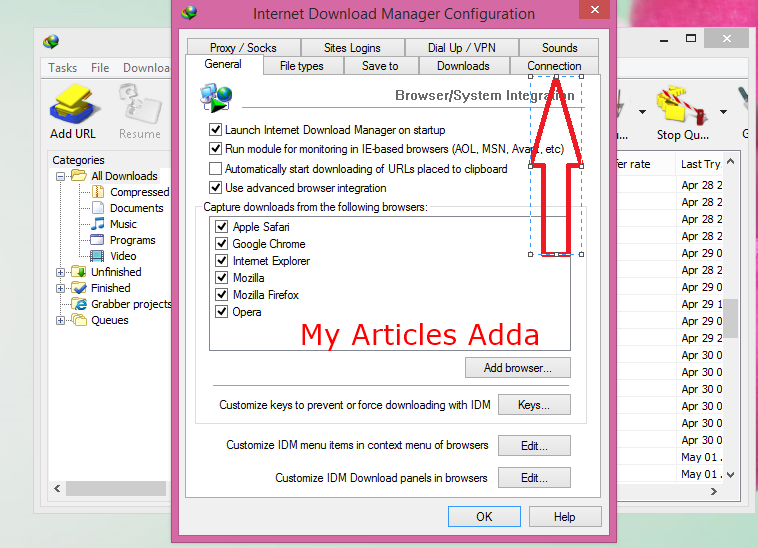
3. Click on connection tab


4. Select connection type high speed


5. Select default maximum conn. no. to 16


6. Now you are done click ok button.

Hope you like this aricle guys ,Keep Checking our Blog we have lot more intresting to share with you in upcoming days.If you have facing any problem or Suggestion please make a comment below or our facebook fan page.

How to increase idm download speed

Saturday, May 9, 2015

It is really very frustrating to know that the rar file you downloaded is password protected ,and the owner says you to download the password from a survey site This is an exclusive trick posted by My articles adda ,get to know if a rar file is password protected or not

To ensure that the rar file you are going to download is password protected or not but using this simple trick you can easily know  that whether the file is password protected or not.

Just follow these steps:

Make sure idm is installed

1.Start downloading the rar file with idm
2.The moment download starts pause it
3.Then goto downloads>options as shown in the screenshot below  
      
4.And copy temporary storage link as shown below
And close idm
5.Now goto run (win key+r) and paste the temporary storage location you copied from idm and press enter
6.Then click DwnlData folder and locate your file here
7.and open the folder ,you will see few blank files with no extension
8.Rename the biggest file and add .rar to it
9.finally open the archive and try to open its contents ,if it is password protected you will see the followingord protected you will see the following

Hope you like this Article guys ,Keep Checking our Blog we have lot more intresting to share with you in upcoming days.If you have facing any problem or Suggestion please make a comment below or our facebook fan page.

How to know if a rar/zip file is password protected before downloading it

Sunday, April 19, 2015

UC Browser For PC: UC Browser is one of the best and fastest mobile browser which is now also available for PC / Desktop users. UC Browser for PC is more faster and lighter than any other PC Browsers and packed with all features as of other ones. You will experience Fast downloading same as Mobile UC browser. Size of this uc for pc browser is also very less than other browsers, that is 45.41 MB [Offline installer]

Uc browser for Windows PC is available in two versions, one is General Version and other is Indian version.

Features of UC Browser For PC:

Fast Downloads
  • Enjoy high speed downloads with a resume option when interrupted and a smart file manager.
Smooth Browsing
  • Load photos and links beforehand so you can open them instantly later on for non-stop browsing.
Cloud Sync
  • Seamlessly switch between UC Browser across your devices by syncing your open tabs and bookmarks.
Fun & Easy to Use
  • Customization speed dials, themes and add-ons, plus unique and user-friendly features make your browsing easier and fun!

Download UC Browser For PC:

Click on below button to go to the official page of Ucweb for Pc browser.
download uc browser for pc

What I experienced using this browser?

  • Its lighter and faster than Google Chrome & Mozilla Firefox browser.
  • Size is also lesser than any other browsers.
  • Page loading and connection speed is almost instant.
  • You can use all Chrome Extension in UC Browser for pc as UC Browser is based on the Google Chromium project and is compatible with most Google Chrome extensions.

Compatibility Of Uc Browser:

  • You can use UC browser for Windows 8 , 8.1, 7, etc.
Kindly share your experience after using this Uc browser for Windows. Don't forget to Like & Share this with your friends and relatives.

Download UC Browser For PC / Desktop (Windows 7/8/8.1)

 
MyArticlesAdda.Blogspot.CoM | Free Internet Tricks, Blogging Tips Coupen Codes © 2015 - Designed by Templateism.com